
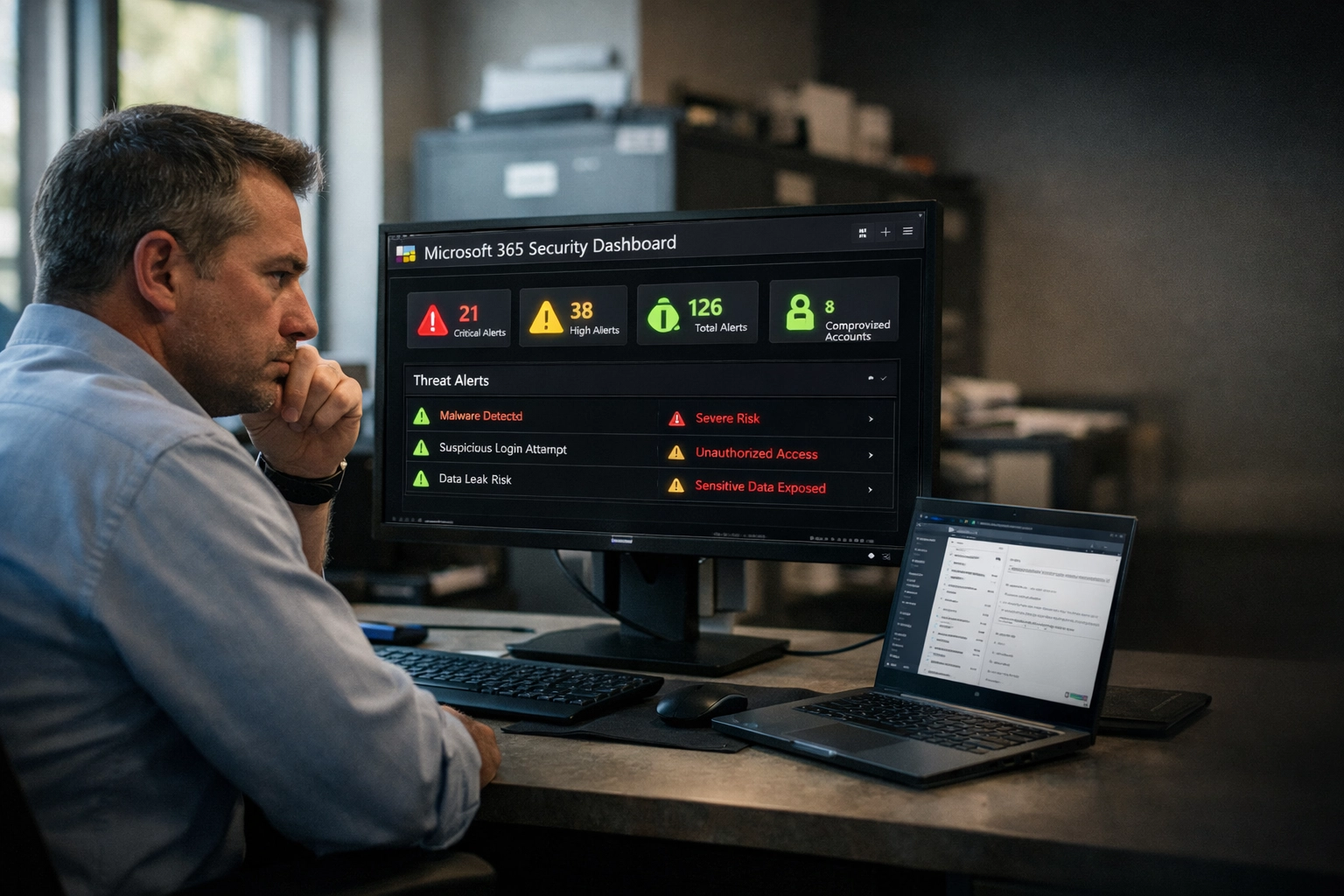
Most Nebraska businesses running Microsoft 365 are wide open.
Not because they don't care. Because Microsoft ships M365 with bare-minimum security turned off by default. You're expected to configure it yourself. And if you're a Lincoln manufacturer running lean or an Omaha hotel group managing five properties, you don't have time to become a Microsoft security expert.
The result? Compromised admin accounts. Phishing emails that land in every inbox. Files shared publicly that shouldn't be. And when ransomware hits, it's not just downtime, it's payment processing frozen, reservations inaccessible, and operations dead in the water.
This guide walks you through the highest-impact security controls you can enable in three weeks. No certifications required. No enterprise budget. Just the stuff that actually stops attacks.
Why Microsoft 365 Security Matters for Nebraska Businesses
Microsoft 365 isn't just email anymore. It's your CRM data in SharePoint. Financial records in OneDrive. Customer communications in Teams. Production schedules shared across departments.
When an attacker compromises one account, they don't just read emails. They exfiltrate your entire document library, set up forwarding rules to steal future correspondence, and use your trusted domain to phish your vendors.
Nebraska businesses are not immune. Attackers don't care if you're in Omaha or Atlanta. They care that you have:
- Weak or nonexistent multifactor authentication
- Admin accounts with predictable passwords
- Email that doesn't verify sender authenticity
- No monitoring for suspicious sign-ins or data access
The good news? You don't need a security operations center. You need a solid baseline. And Microsoft gives you most of the tools for free.
Week 1: The Four Controls That Stop 90% of Attacks
Start here. These four changes will block the majority of real-world attacks targeting small businesses.
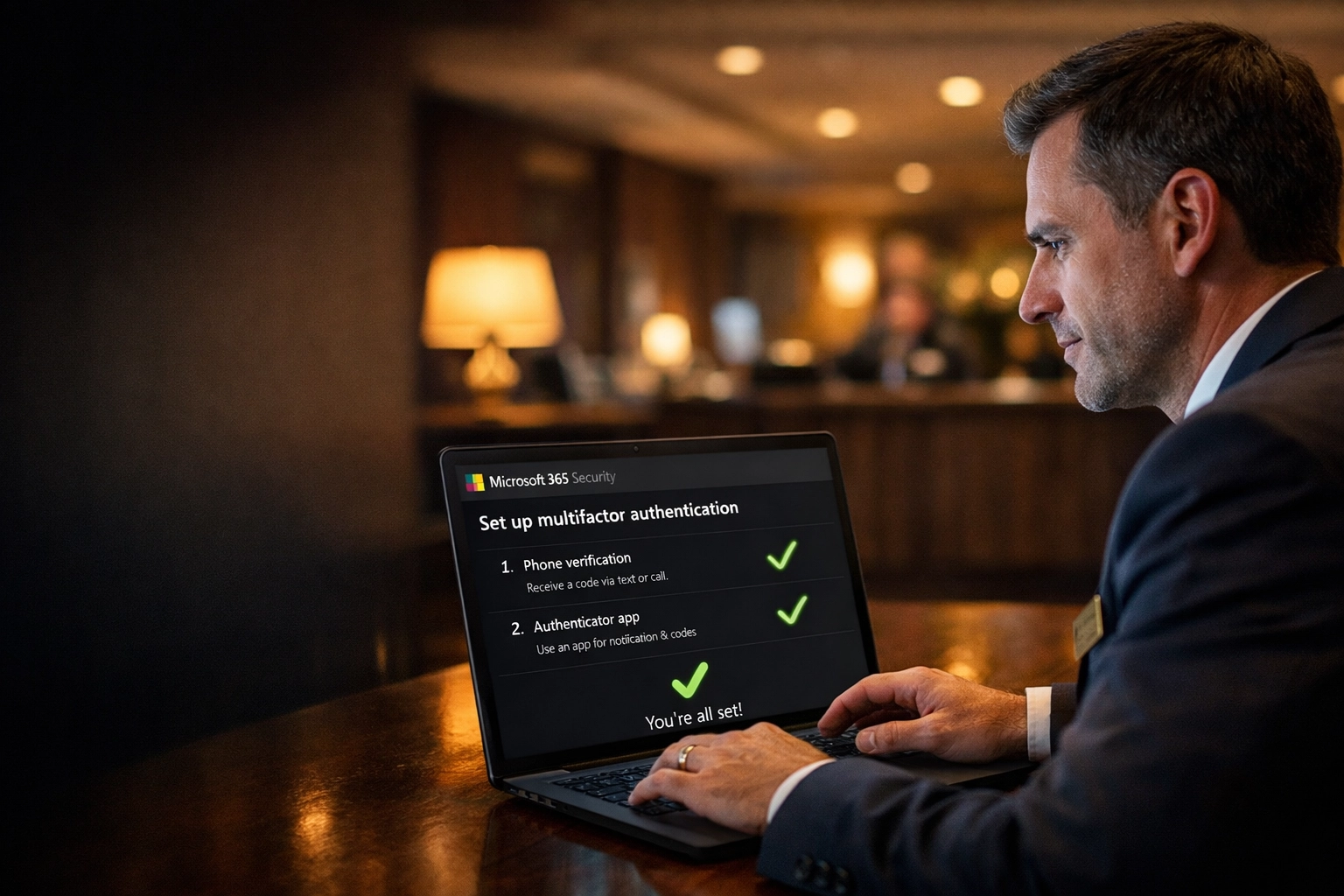
Enable Multifactor Authentication for Everyone
MFA is the single most effective control you can deploy. Period.
Brute-force attacks, credential stuffing, password sprays, MFA stops all of them. Without it, an attacker only needs your password. With it, they need your password and physical access to your phone or authenticator app.
How to do it:
Go to the Microsoft 365 admin center. Navigate to Security Defaults (for simpler deployments) or Conditional Access policies (if you have Azure AD Premium). Turn on MFA for all users. Start with admin accounts if you need to phase it in.
Don't make exceptions for "VIP users who find it annoying." Those are your highest-value targets.
Secure Admin Accounts with Least Privilege
Your admin accounts, especially owners, finance staff, and IT managers, have full control over your tenant. If an attacker compromises one, they own everything.
How to do it:
Audit who has admin roles right now. Remove anyone who doesn't need elevated access. Create separate admin accounts for users who do (e.g., [email protected] instead of using their regular account). Apply MFA to these accounts first.
Principle: Only grant admin rights to those who actively need them. Remove access immediately when someone changes roles or leaves.
Turn On Security Defaults or Conditional Access
Security Defaults automatically enforce baseline protections: MFA for admins, blocking legacy authentication, and requiring MFA when Microsoft detects risky sign-ins.
If your plan supports Conditional Access (Azure AD Premium), you can go further, blocking sign-ins from specific countries, requiring compliant devices, or enforcing MFA only for high-risk users.
How to do it:
In the Azure AD portal, navigate to Properties > Security Defaults and flip it to "Enabled." If you already use Conditional Access, configure policies that match your risk tolerance. Start conservative and adjust based on real-world feedback.
Disable Legacy Authentication
Older email protocols (like IMAP, POP3, and Basic Auth) don't support MFA. Attackers love them because they can brute-force credentials without triggering modern security controls.
How to do it:
In the Microsoft 365 admin center, go to Settings > Org Settings > Modern Authentication and ensure it's enabled. Then create a Conditional Access policy (or use Security Defaults) to block legacy auth protocols across your tenant.
Most businesses don't need these anymore. If you have one legacy app that relies on them, migrate it or isolate it.

Week 2-3: Lock Down Email and Data Sharing
Once the big four are in place, tighten email security and data access. This is where most breaches start, phishing emails and overshared files.
Configure SPF, DKIM, and DMARC
These three DNS records authenticate your outbound email and prevent attackers from spoofing your domain.
- SPF tells receiving servers which IPs are authorized to send email on your behalf.
- DKIM signs your emails with a cryptographic signature so recipients can verify authenticity.
- DMARC tells receiving servers what to do with emails that fail SPF or DKIM checks (quarantine or reject them).
Without these, attackers can send phishing emails that appear to come from your domain, and they'll land in your customers' inboxes.
How to do it:
Work with your DNS provider (or your IT partner) to add the appropriate TXT records. Microsoft provides the exact values in the M365 admin center under Domains. Set DMARC to p=quarantine initially, then move to p=reject once you've confirmed legitimate mail isn't being blocked.
Tighten SharePoint and OneDrive Sharing
By default, SharePoint and OneDrive allow users to share files with "Anyone", meaning no login required. That's fine for public marketing assets. It's disastrous for financial records, contracts, and customer data.
How to do it:
Go to the SharePoint admin center. Navigate to Policies > Sharing. Change the default from "Anyone" to "Existing Guests" or "Only People in Your Organization." Review existing shared links and revoke overly permissive ones.
Train your team on proper sharing practices. External sharing is fine, just make sure recipients need to authenticate.
Enable Microsoft Defender for Office 365 (If Available)
Defender for Office 365 scans emails, links, and attachments in real time. It detects phishing, malware, and suspicious behavior across Exchange, SharePoint, OneDrive, and Teams.
If your plan includes it (Business Premium or higher), turn it on. Configure Safe Links and Safe Attachments policies to scan all inbound and outbound content.
How to do it:
In the Microsoft 365 Defender portal, navigate to Policies > Threat Policies. Enable Safe Links, Safe Attachments, and anti-phishing policies for all users. Set Safe Attachments to "Block" rather than "Monitor" for production environments.
Build a Maintenance Rhythm That Actually Works
Secure configurations drift. Someone grants temporary admin access and forgets to remove it. A user creates a forwarding rule to their personal Gmail. A former employee's account stays active for weeks.
You don't need daily monitoring. You need a simple rhythm that catches drift before it becomes a breach.
Monthly:
- Review admin role assignments
- Check for high-risk sign-in alerts
- Audit mailbox forwarding rules and delegation
Quarterly:
- Review Conditional Access policies
- Verify SPF/DKIM/DMARC records are still configured correctly
- Test your incident response plan (yes, you need one)
Immediately:
- Disable accounts the day someone leaves or changes roles
- Revoke external access for offboarded vendors and contractors
If your business in Lincoln or Omaha is dealing with slow systems, downtime, or unreliable IT support : SAINT fixes it before it becomes a problem. We handle managed IT services and cybersecurity services nebraska so you can focus on running your business instead of babysitting M365 settings.
Set Up Alerts That Matter
Microsoft 365 can generate thousands of alerts. Most are noise. Focus on high-signal events that indicate real risk:
- Admin role changes – Someone just gained Global Admin rights. Legitimate or compromise?
- Risky sign-ins – Impossible travel, unfamiliar locations, or sign-ins after multiple failed attempts.
- New forwarding rules – Attackers create these to exfiltrate emails without detection.
- Mass downloads from SharePoint/OneDrive – Could be legitimate offboarding. Could be data exfiltration.
- Failed sign-in spikes – Password spraying and brute-force attempts in progress.
How to do it:
In the Microsoft 365 Defender portal, navigate to Settings > Microsoft 365 Defender > Alert Policies. Enable the built-in alert policies for suspicious activity. Route alerts to a monitored inbox or your IT partner's SOC.
Don't set up alerts you won't act on. If you don't have the bandwidth to investigate them, partner with someone who does.

You Don't Have to Do This Alone
Securing Microsoft 365 isn't complicated. But it does require time, attention, and ongoing maintenance. For Nebraska businesses running lean: especially those in manufacturing, hospitality, and healthcare: that's time you don't have.
This guide gives you the roadmap. Start with MFA and admin account security this week. Add email authentication and sharing controls next week. Build a maintenance rhythm and alert system by week three.
If you'd rather hand this off to a team that knows the terrain, we're here. SAINT handles cybersecurity services nebraska businesses trust: from M365 hardening to full threat monitoring. We don't just set it and forget it. We manage it, monitor it, and adjust it as your business grows.
Need help locking down your M365 environment? Call 531-625-2111 or visit saintsecured.com. We'll assess your current setup, deploy the critical controls, and keep your tenant secure without disrupting daily operations.